Photoshop tutorials for beginners : Adobe Photoshop Tools

Photoshop tutorials for beginners :
Introduction to Adobe Photoshop Tools
Adobe Photoshop is one of the most popular photo editing softwares available. If you want to work on a webpage, or if you want to use images for your PowerPoint presentation, or even if you want an image to be printed, Adobe Photoshop can help you to enhance the images. These micro Adobe Photoshop tutorials for beginners will help you to learn about the image file types, composting (adjusting several images), cropping images, ghosting images (as webpage backgrounds), creating masks, using layers, applying filters, as well as also formatting text with the levels, layers and other effects.
Adobe Photoshop is the most ubiquitous as well as industry standard software for all the photographers, digital artists, designers and casual enthusiasts. It is possible that this software comes to you as a baffling photoshop application to understand the very first time when a user fires it up. However; luckily, a huge amount of photoshop tutorials for beginners on photoshop tools are available in this article that will help you learn as well as running this software in no time.
Here we come with a sack of tutorials for absolute beginners to the intermediate users who are keen to learn photoshop. If you are an absolute beginner then it is possible for you not to know about the Photoshop tools . You will get huge tools that are available in adobe photoshop. Not all the tools are hugely used to edit photos or even graphical tasks, however; there are some hugely used photoshop tools that you must know before you start your journey with photoshop.
Popular Adobe Photoshop Tools
We are not going to learn about every single tool that is available in adobe photoshop, however; we are going to touch almost every one of those photoshop tools. This overview of Photoshop tools will give you a clear idea about each tool and what each tool normally does. Start playing with the photoshop tools!

Photoshop Tools Review
Quick Overview of PhotoShop Tool
Above picture focuses on all the Photoshop tools that are widely used. We will discuss each of them one by one. Don’t forget to open your Adobe Photoshop and start practicing with these tools!
So let’s kickstart!
Move Tool (Shortcut Key: V)
This tool will let you move the objects in any given layer around your Photoshop canvas. To use move tool, click on your canvas and start to drag. You will notice that your Photoshop layer will start to move with the mouse.

Move tool
Marquee (Shortcut Key: M)
The tool will let you select the part of your canvas in any specific shape according to your choice. You will get a by default choice and that is the rectangular marquee tool or the perfect square tool if you simply hold down the SHIFT while selecting, however; you can select another shape like an ellipse or the perfect circle. You just have to hold down SHIFT while selecting. You can also choose Single Row Marquee and Single Column Marquee according to your need! Remember, this tool will allow you to select any portion of your canvas!

Marquee Tool.
Magic Wand (Shortcut Key: W)
Selecting this magic wand will allow the Photoshop to select any spot on the canvas you clicked on as well as anything around that spot that is almost similar. This magic tool can easily be used as a nice crude way to remove the backgrounds from photos. We will see the details in other photoshop tutorials for beginners related to background change. You will also get a Quick Selection Tool that will allow you to select any related spot within a very short time.

Magic Wand and Quick Section Tool
Crop Tool (Shortcut Key: C)
This is one of the most popular tools and simply is used to crop the pictures. It is possible to specify the size as well as constrained this tool to those proportions, or even you can crop the pictures to any size you wish.Slice tool andthe Slice Select toolwill also help you to crop the images to an exact size!

Crop and sliceTool
Eyedropper (Shortcut Key: I)
This tool will let you click on anywhere on your canvas as well aspick the sample color at that point. You can change the foreground color with this tool to any color it sampled from your canvas. Other tools related to this one area Color Sampler tool, Ruler Tool, Count tool and Note Tool. Among these tool Ruler tools is used mostly. It will allow you to take the pixel sizes, mostly used by the front-end web designer.

Eyedropper Tool
Healing Brush (Shortcut Key: J)
The photoshop healing brush will let you sample part of any image as well as use it simply to paint over the other part. When you will finish, Photoshop will start to examine the surrounding areas and also try to blend the action that you have painted in with the rest of the image. You will be able to use this tool to remove spots, acne, wrinkles from the photos. We will see the details in image editing photoshop tutorials for beginners. Patch tool and Red eye tool are also available. Red eye tool will help to remove the red light effects from the eyes of the photos.

Healing Brush,Patch and Red Eye Tool
Paintbrush and Pencil (Shortcut Key: B)
The paintbrush tool emulates a basic paintbrush as well as the pencil tool emulates a basic pencil. The paintbrush tool can easily be set to different kinds of paint brushes. It is possible to paint with the standard paintbrush as well as also airbrush stylus. You can also paint with leaves and also other brushes.

Brush,Pancil and Color Replacement Tool
Clone Stamp (Shortcut Key: S)
The Clone stamp works like the healing brush and it will let you take sample part of your photo. You can use this tool to paint over other part. Photoshop does not do anything beyond the painting of one area over the new area. You can use the Clone Stamp tool or Pattern Stamp tool. Clone stamp is hugely used!

Clone Stamp Tool
History Brush (Shortcut Key: Y)
The brush tool will let you paint back. Photoshop basically keeps the track of all moves that you make; by default actually 50 moves as well as this tool will also let you paint the previous back into your current photo. For example, you brightened up your entire photo, however; you wanted simply to make an area look exactly like it did just before you brightened that area, in that case you can take this history brush tool as well as can paint that certain area to bring back the past darkness.History Brush Tool and Art History Brush Tool are available.

History Brush Tool
Eraser Tool (Shortcut Key: E)
The task of erasing tool is simply erasing any paint effect! This tool is identical to the photoshop paint brush, except this erases instead of the paints. You will get two other options like background eraser tool as well as a magic eraser tool. The background eraser tool will help you to erase the background in no time and Magic eraser tool will help to erase the same kind of effect quickly.

Eraser Tool
Paint Bucket and Gradient Tool (Shortcut Key: G)
This paint Bucket Toolwill let you fill specific areas with current foreground color. And the gradient tool helps to create a gradient thatwill blend the foreground as well as background tool. You will be ableto load and also create a preset gradient as well. It is possible that some of those may use more than two colors.

Gradient and Paint Busket Tool
Blur Tool (Shortcut Key: None)
Blur tool basically works like the paint brushes and this tool will give a nice blur effect. Some other tools are available with this tool like sharpen tool as well as the smudge tool, however; each of these tools has a unique impact on the picture. This Blur tool will help you to blur the area where you have already painted, sharpen tool will help you to sharpen it, as well as this smudge tool will help you smudge the area around the canvas. This smudge tool is useful in drawing as well as creating blended colors or even for creating the wisps as well as smoke that you can easily add to the photos.

Blur Tool
Burn Tool (Shortcut Key: O)
This burns tool is paintbrush-like tool that will manipulate light as well as color intensity. Basically, burn tool canhelp you make areas in the photos darker. At the same shortcut there are some other tools available like Dodge tool and Sponge Tool. This dodge tool can help you make your photos lighter. This sponge tool will saturate or even desaturate colors in the area that you paint with this tool. These tools are hugely used for photo touch ups.

Dodge Tool
Pen Tool (Shortcut Key: P)
This tool is used simply for drawing the vector graphics. You can also use this tool to create the paths that can easily be used for different things that we will discuss in other photoshop tutorials. You can use this tool by clicking simply to add any point. In case you click and also drag, this tool will start to change the shapes of the path and also allow you to bend as well as shape the paths for accurate selection and similar tasks. Freedom Pen Tool, Delete Anchor Point Tool, Add Anchor Point Tool as well as Convert Point Tool, all of these are available with this tool.

Pen Tool
Type Tool (Shortcut Key: T)
This tool will help you type horizontally. You will get some other tools with this tool, they are, Vertical Type Tool, Vertical Type Mask Tool as well as Horizontal Type Mask Tool. Vertical Type tool will help you type vertically, and mask tool will help you add the type mask horizontally as well as vertically.

Type Tool
Path Tool (Shortcut Key: A)
The path tool will let you move the created paths just around your canvas. It works just like the photoshop move tool, however; only works for paths.Direct Selection Tool is also available.
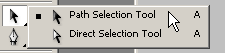
Path Section Tool
Custom Shape Tool (Shortcut Key: U)
This tool will let you createvector rectangles, circles, rounded rectangles, polygons, lines, as well as custom shapes. Basically these tools will help you designing or creating different shape masks for the photos. You can also use line tool, Rectangle tool, Ellipse tool and others.

Shape Tool

Custom Shape Tool
3D Tools (Shortcut Key: K)
You can also use the 3D tools to create different 3D designs. We are not going to deal with the 3D stuff in this lesson. However; you need to know about these tools as these exist. In case you are curious, then you can follow our other photoshop tutorials to know about the details about 3D tools and for what purpose you can use them.

3D Tools
Hand Tool (Shortcut Key: H)
This tool will allow you to click as well as drag around Adobe Photoshop canvas. In case your entire canvas fits on your screen, then this tool will not be able to do anything. Hand tool is for easy navigating around especially when you are zoomed in. Rotate View Tool is also available.

Hand Tool
Zoom Tool (Shortcut Key: Z)
This photoshop tool will let you zoom in as well as out of your Adobe Photoshop canvas simply by clicking on any given area. The zoom tool zooms in by default. If you want to zoom out, just hold down this option key as well as use thiszoom tool normally.

Zoom Tool
Color Selection Tool (Shortcut Key: D)
Color selection tool will let you manage all the colors you are using. Colors that are available on the top are the foreground colors as well as the colors that are available on the back are the background colors. Foreground colors are what that your brushes normally will use and the background colors are what that will be used in case you delete anything from the background or even extend it. Shortcut Key “D” is used for foreground color as well as the shortcut key “X” is used for background color. You can choose any color from the color picker!

Color Selection Tool
Learn the Basic Palettes of Photoshop
Palettes are basically the things that you will see sitting over just on the right side of the photoshop screen. These palettes will make it easy for the user to navigate through the document, switch modes, add adjustments as well as other things. Following are the most popular photoshop palettes.
Layers
This is one of the mostly used palette and it will let you see all layers in the document. When you will start getting to introduce with Photoshop, you will find yourself in the layer palette more than the others. It will let the users organize as well as arrange the layers, set visibility, set blending modes as well as opacity of the layers, group and also merge layers. You will be able to do a bunch of other different neat things with this palette.

Layer plate
Adjustments
This panel will allow you create as well as edit adjustment different layers. Adjustment layers normally are non-destructive images alteration that will affect all layers below them as well as also can be turned on and also off. This is mostly used for color correction, Curves adjustments, however; there are different kinds of adjustments that you can perform and these can dramatically alter the current look of your picture.

Adjustments Plate
Color Channels
This palette lets you look at specific colors that will basically make up the picture. If you are in RGB mode you will get the red, green, as well as blue. This color channels normally will differ if you are in different color spaces just like CMYK or even LAB. When the users choose a color, they will notice different versions of images like black and also white. Each color channel is a monochromatic images that is representing the soft light in every channel for example the red channel at the red light in the image.

Color Channels Palette
Color Picker
The color picker palette lets you alter the foreground as well as background colors just using your sliders.

Color Picker
Color Swatches
This palette is basically a set of colors that are pre-defined that you quickly can choose from. It is possible to load in other pre-made swatches collection or even you can create your own.

Color Swatches
History
This palette will let you go back in no time to undo the previous alterations. Standard undo command will simply toggle between the undoing as well as also the redoing latest action just performed on the current image. The panel will also allow you to go back maximum 50 actions.

History Details
Text
Text and paragraph palette will let you make adjustments to any type of text that you create with type tool. This option is very similar to word processing, however; you can specify things just like character width as well as spacing that are more useful for the design.

Photoshop Character Panel
Learn the Basic Menus of Photoshop
File
This is normally used to open, save, and closenew files and operations.

File Menu
Edit
Usually is used to bring new copy, cut, as well as paste. This menu also helps to transform layers and also set the color spaces and others.

Edit Menus
Image
This menu will bring you canvas as well as image adjustments, like destructive effects. Options in Image menu are nicely designed to affect all the images, although different adjustments are applied to the layers.

Image Menu
Layer
This menu will let you do everything that you can do with your layer palette and you will also get more options.

Layer Menu
Select
The marquee tool as well as the lasso tools can help you selecting things, however; the select menu will help you to refine the selection or even createnew selections based on any criteria like color range as well as luminosity.

Select Menu
Filter
Filter menu comes with some built-in Photoshop filters like blur, distort, sharpen, as well as alter image in many different as well as unique ways. You can try all the filter effects, though it will take time, but you will learn better. You will be able to see the details uses of filters in different tutorials.

Filter Menu
Analysis
This menu will provide you the measurement tools. You need these to make perfect alterations to the images. Though this basic photoshop tutorial for beginners is not going to cover the details, however; you will be able to know the details uses in other advanced photoshop tutorials.

Analysis Menu
3D
We have already coved the basics on 3D tools just above. If you want to learn more about the 3D effects, then you can explore this menu at some point. You will get more tutorials on 3D effects.

3d Menu
View
This menu provides you various view options. It will let you hide as well as show line guides that you have created, as well as also make Photoshop snap to corners, and to grid on the current canvas.

View Menu
Window
This menu will let you hide and also show windows as well as palettes. If you want then you can arrange your Photoshop windows as well as palettes according to your choice and can save them as your window preset.

Window Menus
Help
This menu will help you to seek help online.

Help Menu
Congrats! Now you have completed your basic introduction with the photoshop tools. We can now step forward to become a Photoshop Ninja!


No Comment